| Developer | Elaborate Bytes |
| License | Free |
| Download | Free Download |
Virtual CloneDrive is a simple software solution for making virtual CD, DVD, and Blu-ray drives. It pretty much duplicates any type of physical disk drive you have, so you can use ISO files as if they were on a CD, DVD or Blu-ray drive in Windows. Also, it can handle disk images that are saved on network drives without any problem.
Virtual CloneDrive is a free software tool that allows you to create up to 15 virtual CD, DVD, or Blu-ray drives at the same time. You can mount and use ISO images containing data, video, or software with an ease, and this is very fast too. The program is very convenient to use as it is integrated into Windows Explorer.
Virtual CloneDrive Features
The main purpose of Virtual CloneDrive is to facilitate the opening of files without burning images onto the physical disks. The most important features are:
1. Imitate Physical Drive
Basically, the program behaves like an actual CD or DVD drive, and you can mount images from any source like the hard drive or network drive. Opening an ISO file can be done by just double-clicking it, with no burning being necessary.
You have the option to select the disk image formats that you want to associate with Virtual CloneDrive during the installation. These formats include .iso, .dvd, .ccd, .udf, .img, and .bin. After associating these formats, you will be able to mount them with just a double click. The formats not associated will need to be manually mounted from File Explorer.
2. Supports Up to 15 Drives
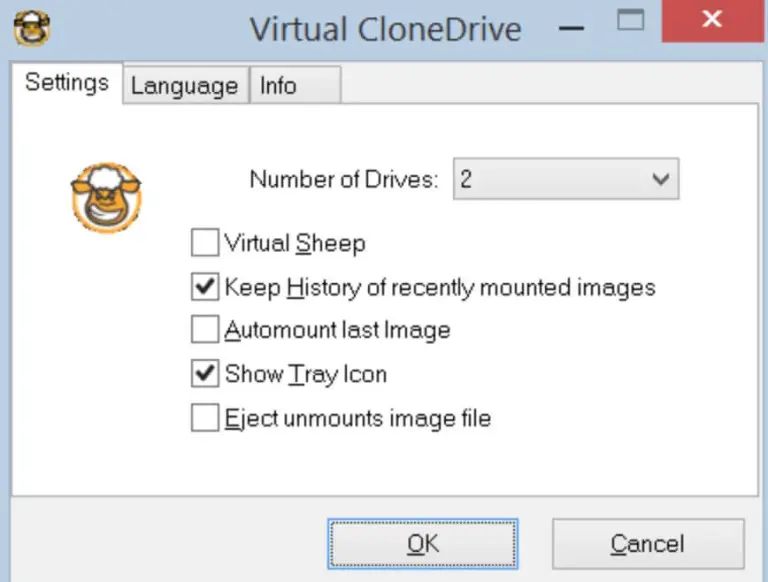
Normally, Virtual CloneDrive sets up one virtual drive by default, but you have the option to add more—up to a maximum of 15 drives being able to be used simultaneously. The number of virtual drives that you activate will depend on the number of images that you want to mount.
In case you want to mount several images at the same time, then you will need to activate the same number of virtual drives. While a double-click is all that you need to do with a single image, the case is different with multiple images that have to be mounted via the context menu.
3. History of Mounted Images
Besides showing the files recently used, Virtual CloneDrive also saves the history of the images that have been mounted.
A very cluttered history makes the search for files a very difficult task. To keep things neat, you have options like clearing the history or even disabling the feature.
4. Easy Unmount
Virtual CloneDrive makes unmounting images so straightforward. You can simply double-click an image and choose the Eject option to remove it from a virtual drive.
If you want to unmount several images at once, the program is very user-friendly: just turn off virtual drives from the main panel, and any mounted images will be unmounted instantly.
5. Integration with Windows Explorer
Virtual CloneDrive stands out from many other virtual drive programs in that it is very well integrated with Windows Explorer. This means that you can mount images straight from the Explorer context menu, thus allowing you the easy access without having to open the app.
Moreover, this free and open-source software comes with a neat, simple-to-use, interface. Whether you are a novice or a thoroughly accomplished user, the program is quite accessible and easy to locate features.
You may also interested in Visual Studio Code (32bit) and Download UC Browser for PC for that you can visit our website.
Why Choose and Download Virtual CloneDrive
There are a lot of software utilities that give you a possibility of opening images without having to write them on a CD/DVD, yet there are a few things that make Virtual CloneDrive a star among all of them:
1. Free of Charge
This freeware is totally free to use in home, school or office environment. Rather than buying other programs with similar features, Virtual CloneDrive gives you the most necessary functions.
2. No Language Barrier
Virtual CloneDrive boasts a wide range of multi-language support that comes handy especially when you need the software to work perfectly in your native language. So, whether it is English, Arabic, Russian, Japanese, Chinese, or any other you want – your setup will be good.
3. Complete Set of Features
The application has such a perfect mix of features at your convenience that to sing its praises is quite a job. Ever since the tool lets mount and unmount the ISO files within seconds and supporting a number of file formats, the pick of choices in dealing with files is greatly enlarged.
4. Easy to Use
Thanks to its clean, simple layout, Virtual CloneDrive is very easy to use. Both beginners and experienced users will find it pretty simple to navigate and use the program.
To sum up, Virtual CloneDrive opens up a world of possibilities in the virtual drive emulation for mounting ISO images on Windows PCs. Its easy user interface, great range of features, and simplicity in use can meet the most demanding needs.